Iadea Tablets:
- Copy and Paste the CA certificate (*.pem) and User certificate (*.pfx) to USB drive.
- On the tablet, click on the logo and then select “Settings”. Then, click on “Launch Android settings”
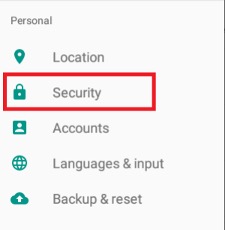
- Scroll down until you find “Security” and click on it
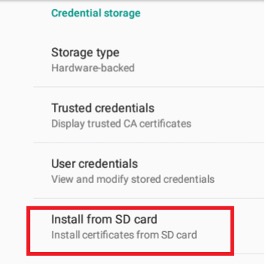
- Under Credential Storage, select “Install from SD card”
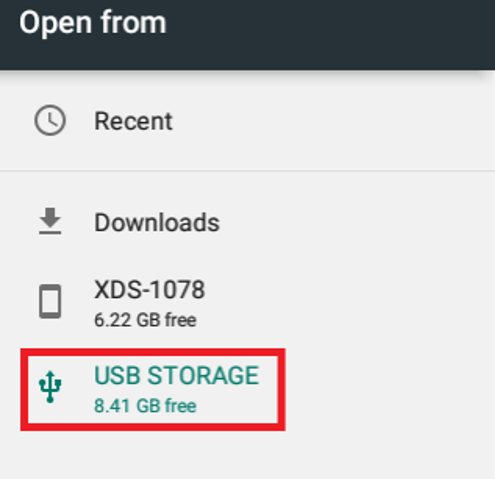
- Select the USB Drive and the CA certificate.
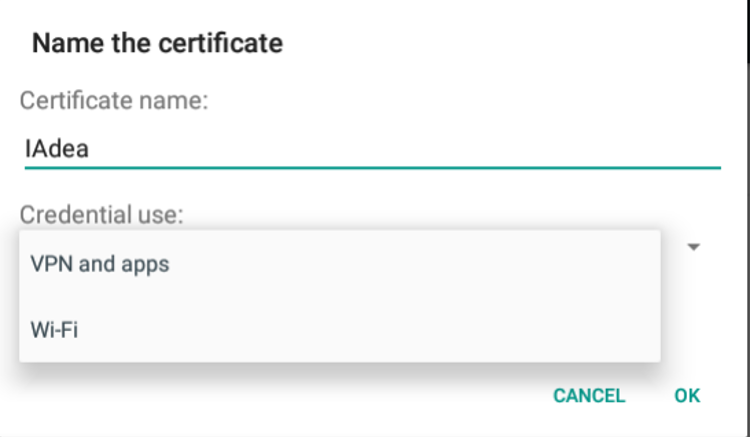
- Name the certificates and choose your credential use. If certificate is for Network authentication ( 802.1x ), select Wi-Fi.
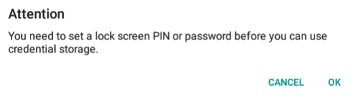
- Select 'OK' to set up the lock screen PIN to enable security settings.
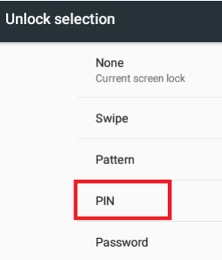
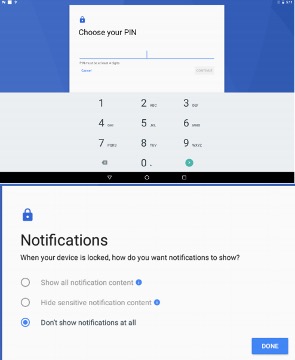
- After setting up the PIN, you will see the certificate is installed. You can also verify by selecting User credentials to view all installed certificates.
- Go back step 4 to install another certificate.
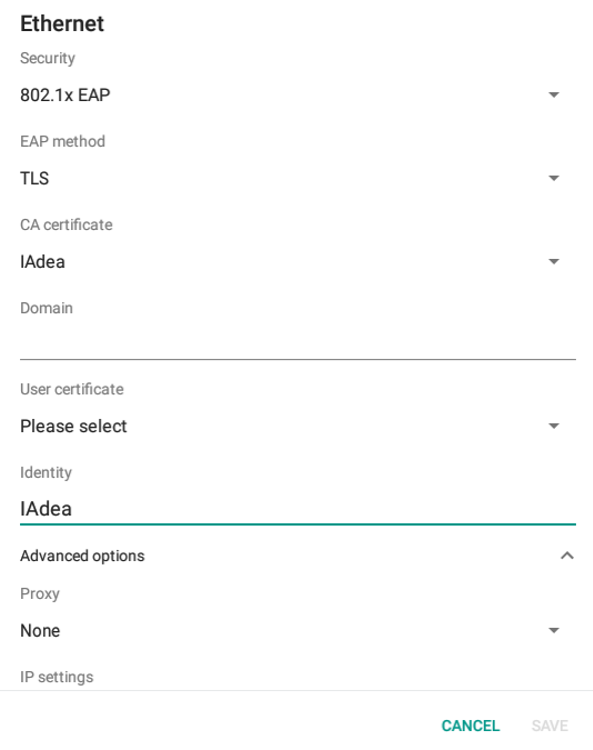
- After installing the certificates, go Ethernet and choose Modify network
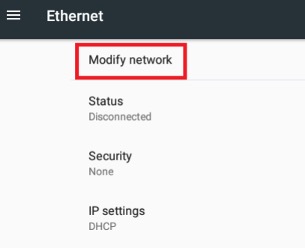
- Choose your preferred Security, EAP method, CA certificate and User certificate. You can fill anything in Identity but cannot be blank. Save settings.
- And you're done! Just confirm that the status has changed to "Connected".